Completion requirements
General Information about BBB
ALL
Question: (Last edited: Monday, 16 December 2024, 11:25 AM)1.- What is BigBlueButton? | |||
|---|---|---|---|
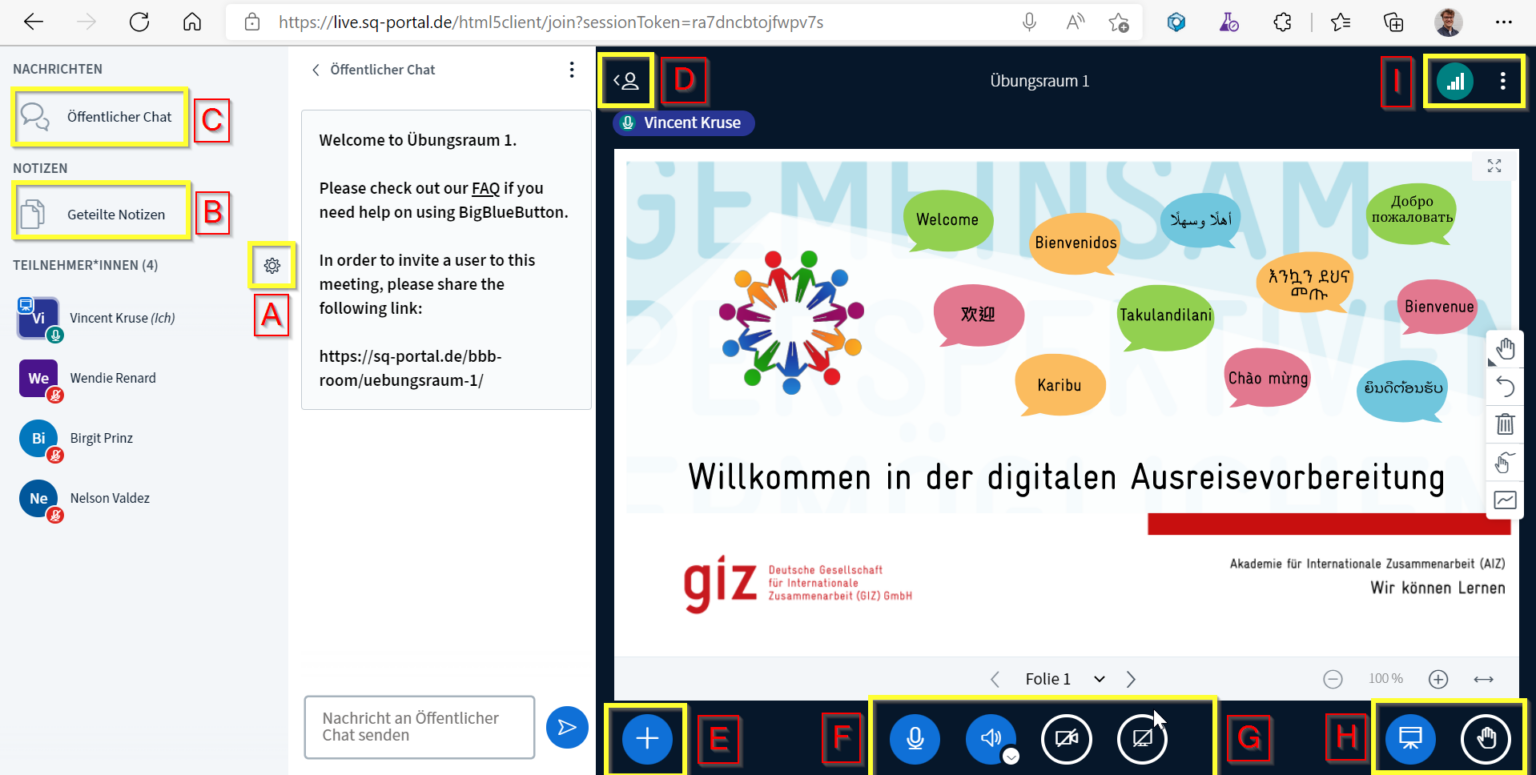
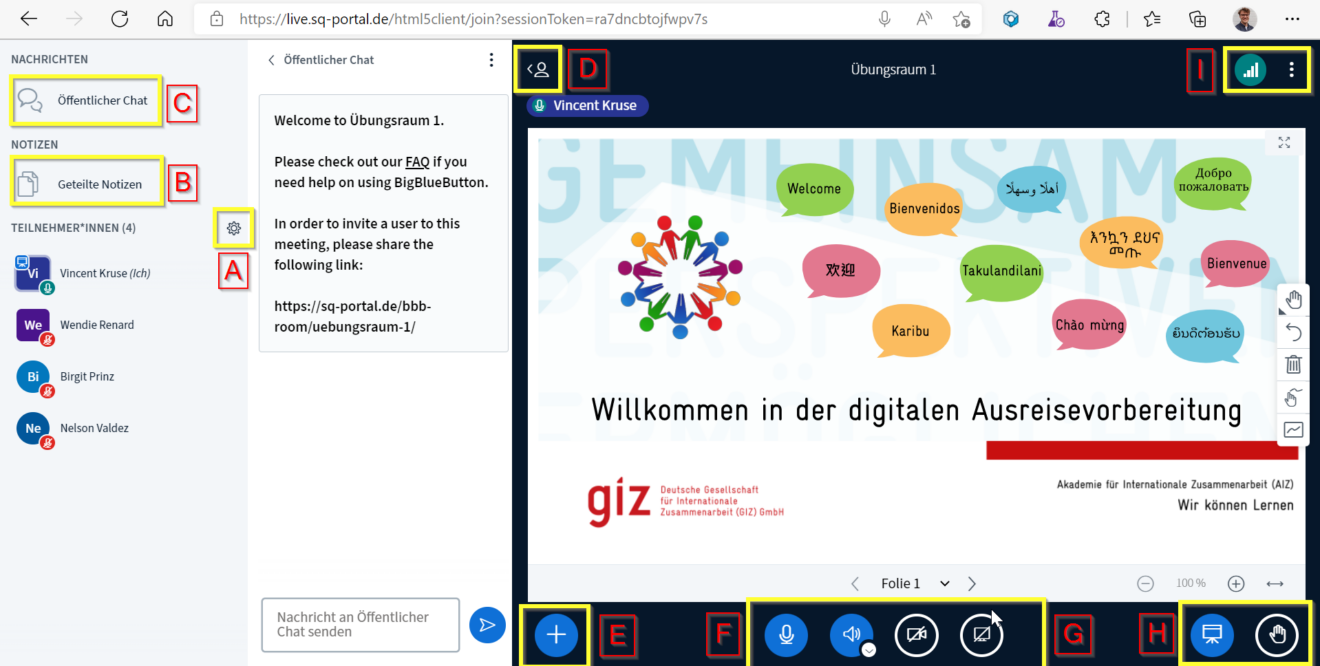
| Answer: If you have any questions, our support will help you. BBB is an open source software designed specifically for digital learning. Therefore, as a "virtual classroom", in addition to classic video conferencing functions such as screen sharing or chat, it also includes surveys and also possibilities for collaborative work within the framework of shared notes or a whiteboard. Here you can find an overview of the user interface: As a participant you may have a limited functional view. Roles: Moderators have a square icon around their initials on the left side of the participant list, participants have a round symbol. | |||
1 |
|---|
2 |
|---|
Question: (Last edited: Monday, 16 December 2024, 11:15 AM)2.- What are the requirements for using BBB? | |||
|---|---|---|---|
| Answer:
| |||
3 |
|---|
Question: (Last edited: Monday, 16 December 2024, 11:23 AM)3.- Wie kann ich den digitalen Meetingraum betreten? | |||
|---|---|---|---|
Answer: How to enter the room:Klick on digital meeting room. You can decide on how you want to enter the conference (“With microphone” or “Listen only”) and you can test your audio input and output, e.g. via headset, then you will enter the meeting room. There you can turn on your video by selecting the “Share webcam” icon in the lower center of the screen.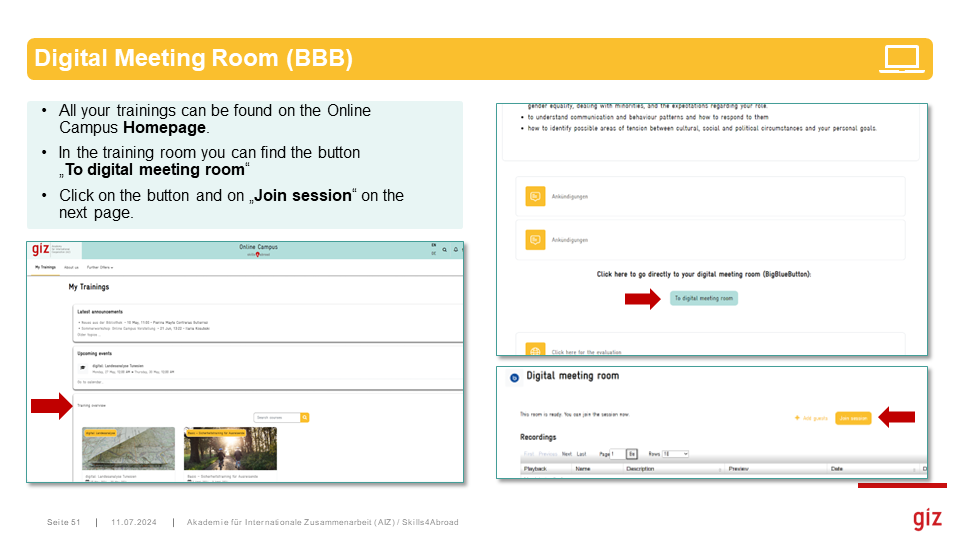 | |||
4 |
|---|
Question: (Last edited: Monday, 16 December 2024, 11:19 AM)4.- How do I know if my internet bandwidth is sufficient for BBB? | |||
|---|---|---|---|
| Answer: You can test your internet connection, for example, with the Belwue speedtest. Here, the values for "Download" (at least 1 Mbit/s | ideally 5 Mbit/s) and "Upload" (at least 0.5 Mbit/s | ideally 1 Mbit/s) should be as large as possible. It is also best to connect your device directly to the network using a LAN cable (Ethernet cable). This way you can ensure that no connection problems are caused by the Wi-Fi (many users, long distance to the router). | |||
5 |
|---|
Question: (Last edited: Monday, 16 December 2024, 11:19 AM)5.- Which browser is best for BBB? | |||
|---|---|---|---|
| Answer:
For BBB, it is best to use the latest version of the web browsers Firefox, Chrome, Edge or Brave. On iOS devices, please only use Safari in the latest version. If you use a different browser, we cannot guarantee or provide support. So if you are using a browser other than those mentioned above and encounter problems, please try using it with one of the recommended browsers first. | |||
6 |
|---|
Question: (Last edited: Monday, 16 December 2024, 11:20 AM)6.- Can I participate with a phone or tablet? | |||
|---|---|---|---|
| Answer:
BBB is a web application. It works with any current browser. We also recommend using a headset on mobile devices to background avoid noise and echo. | |||
7 |
|---|
Question: (Last edited: Monday, 16 December 2024, 11:20 AM)7.- How can I leave the video conference? | |||
|---|---|---|---|
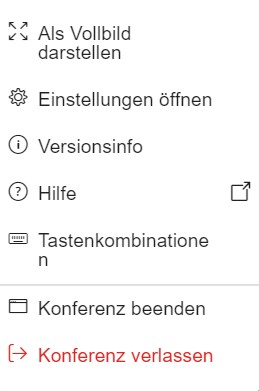
| Answer: To leave the meeting, close the browser tab or click Leave Conference. Please do not click on "End Conference", as this will close the session for all participants.
| |||
8 |
|---|
Question: (Last edited: Monday, 16 December 2024, 11:20 AM)8.- Why can't I see all participants? | |||
|---|---|---|---|
| Answer:
During the trainings, participants can see a maximum of 6 other people. Moderators see all participants at the same time. In any case, however, the person who is speaking is displayed. Tip for facilitators: During group work phases, when it is important that all participants can see each other, you can assign them a moderator status. This setting can be reset quickly and easily after group work (left-click on the participant). | |||
9 |
|---|
Question: (Last edited: Wednesday, 14 May 2025, 9:58 AM)9.- Wie lade ich externe Gäste zu BigBlueButton ein? | |||
|---|---|---|---|
| Answer: Wenn du externe Gäste in dein Training einbeziehen möchtest, müssen diese vorab manuell eingeladen werden. Hier eine Schritt für Schritt Anleitung: 1. Zuerst auf den digitalen Meetingraum gehen und auf das Feld oben rechts "+Gäste hinzufügen" klicken. 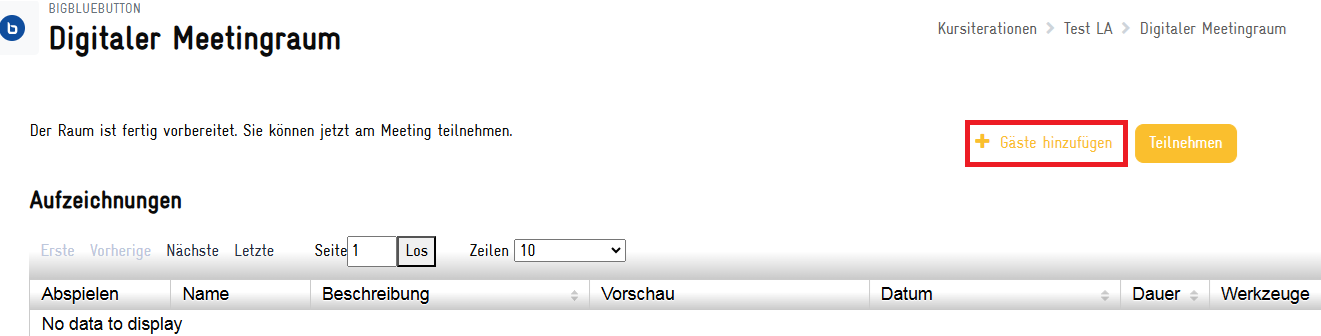 2. Anschließend öffnet sich ein kleines Fenster. Entweder die Gast-E-mail Adresse eingeben und auf "ok" klicken oder den Meetinglink und Passwort kopieren und per Email schicken. 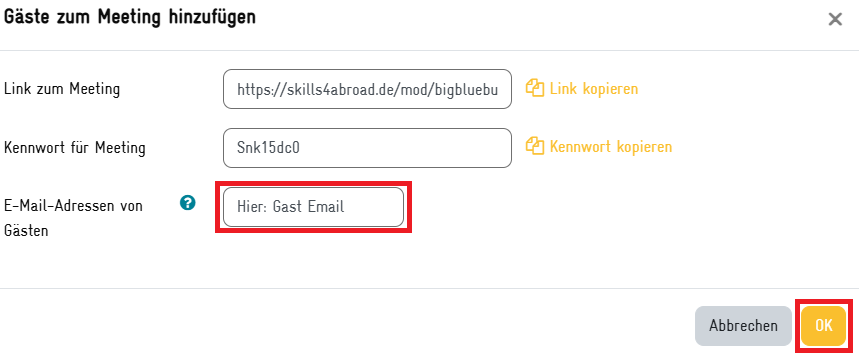 Anleitung für Gäste Falls ein Gast sich unsicher mit der digitalen Lernumgebung fühlt, kann ihm das Guests' manual for BigBlueButton geschickt werden, damit in einer Schritt-für-Schritt Erklärung auf Englisch nachverfolgt werden kann, wie er sich als Gast einloggt. Die pdf findet sich hier als Download im Anhang. | |||